

Bereitstellung von MultiLipi auf Shopify
Verwandeln Sie Ihr Schaufenster in eine globale Vertriebsmaschine.
Shopify ist für den Handel konzipiert, aber wahre globale Skalierung erfordert mehr als nur Währungsumrechnung. Durch die Integration von MultiLipi stellen Sie eine Neuronale Übersetzungs-Infrastruktur bereit, die Ihr gesamtes Schaufenster lokalisiert – von Produktbeschreibungen bis hin zu Checkout-Prozessen – und gleichzeitig die komplexen SEO-Signale automatisch verarbeitet, die erforderlich sind, um Ihre Produkte in ausländischen Märkten zu ranken.
Diese Anleitung beschreibt den Integrationsprozess mithilfe von Shopify's theme.liquid Architektur.
1. Voraussetzungen für die Bereitstellung
Stellen Sie sicher, dass Sie über die folgenden Anmeldeinformationen verfügen, bevor Sie Ihr Theme ändern:
MultiLipi API-Schlüssel
Finden Sie dies in Ihrem Dashboard unter Einstellungen > Allgemein.
Shopify Admin-Zugang
Sie müssen über Berechtigungen zum Bearbeiten von Themes verfügen.
2. Schritt 1: Zugriff auf die Theme-Architektur
Wir werden die Übersetzungs-Engine direkt in die globale Layoutdatei Ihres Shops einfügen, um sicherzustellen, dass sie auf jeder Seite geladen wird (Produkte, Kollektionen, Seiten).
- 1
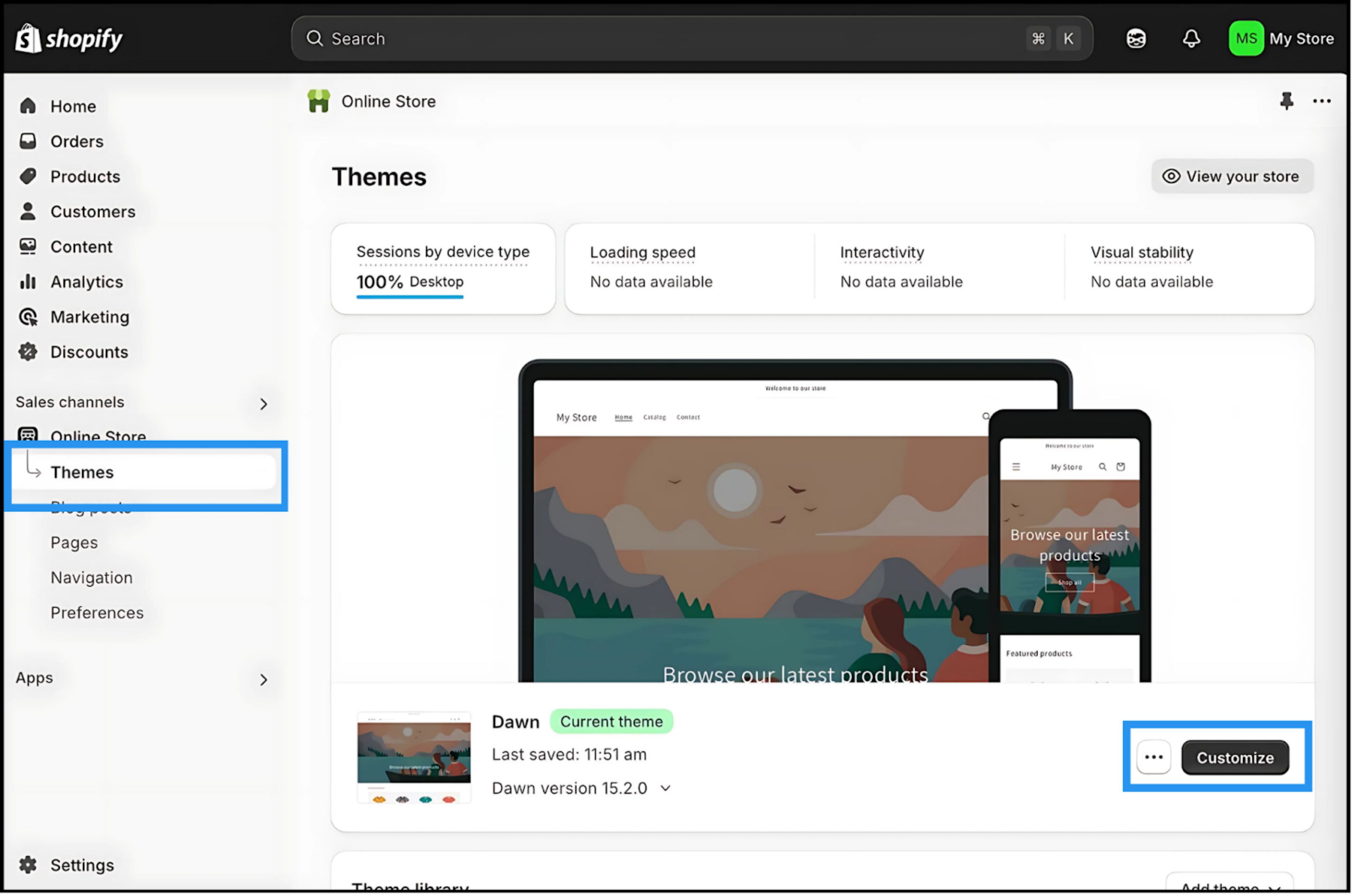
Melden Sie sich bei Ihrem an Shopify Admin-Panel.
- 2
Navigieren Sie zu Online Store > Themes.
- 3
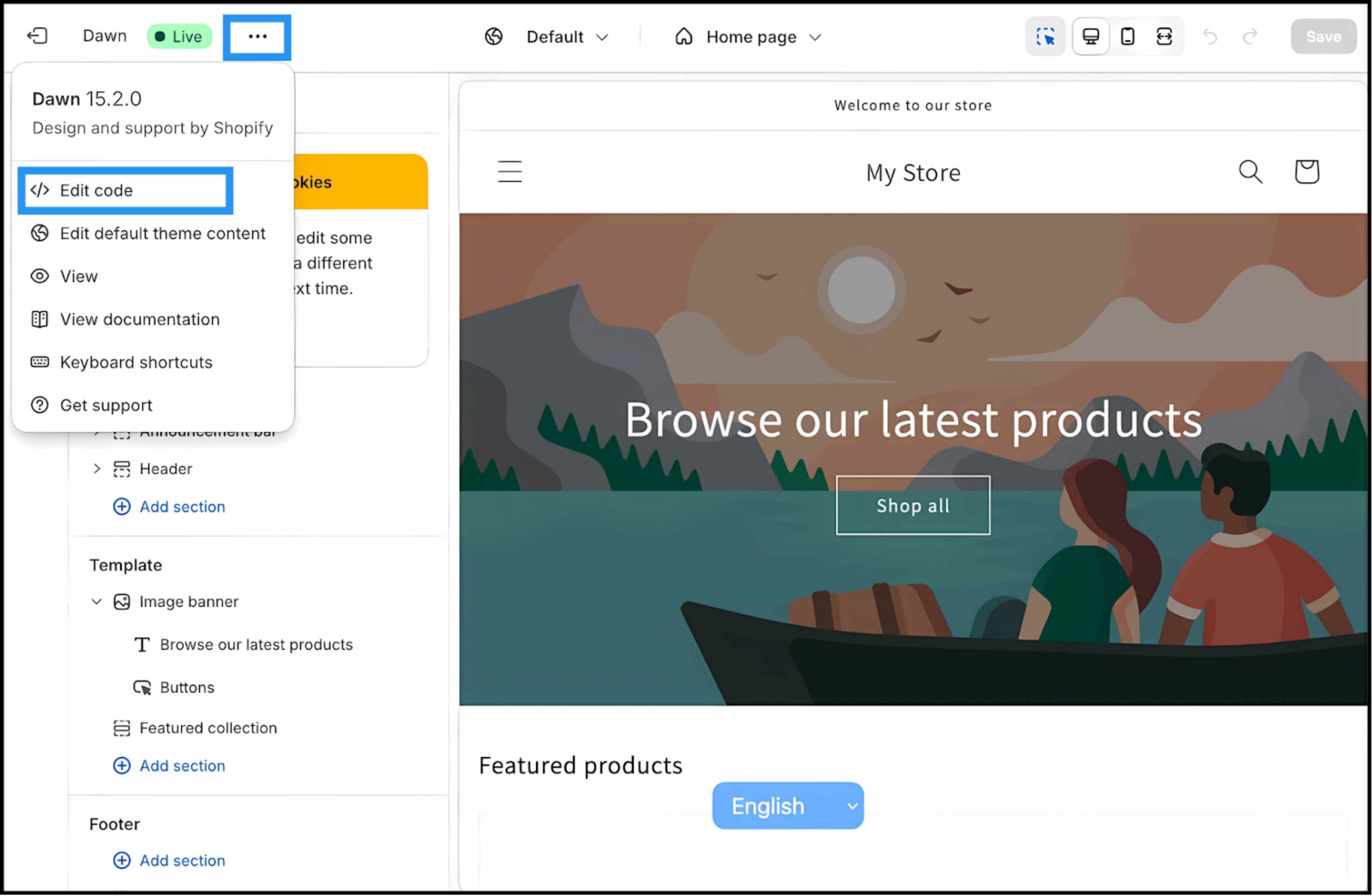
Suchen Sie Ihr aktives Theme ("Live") und klicken Sie auf Drei Punkte (⋮) Schaltfläche.
- 4
Wählen Sie Code bearbeiten.
3. Schritt 2: Einfügen des Infrastruktur-Skripts
- 1
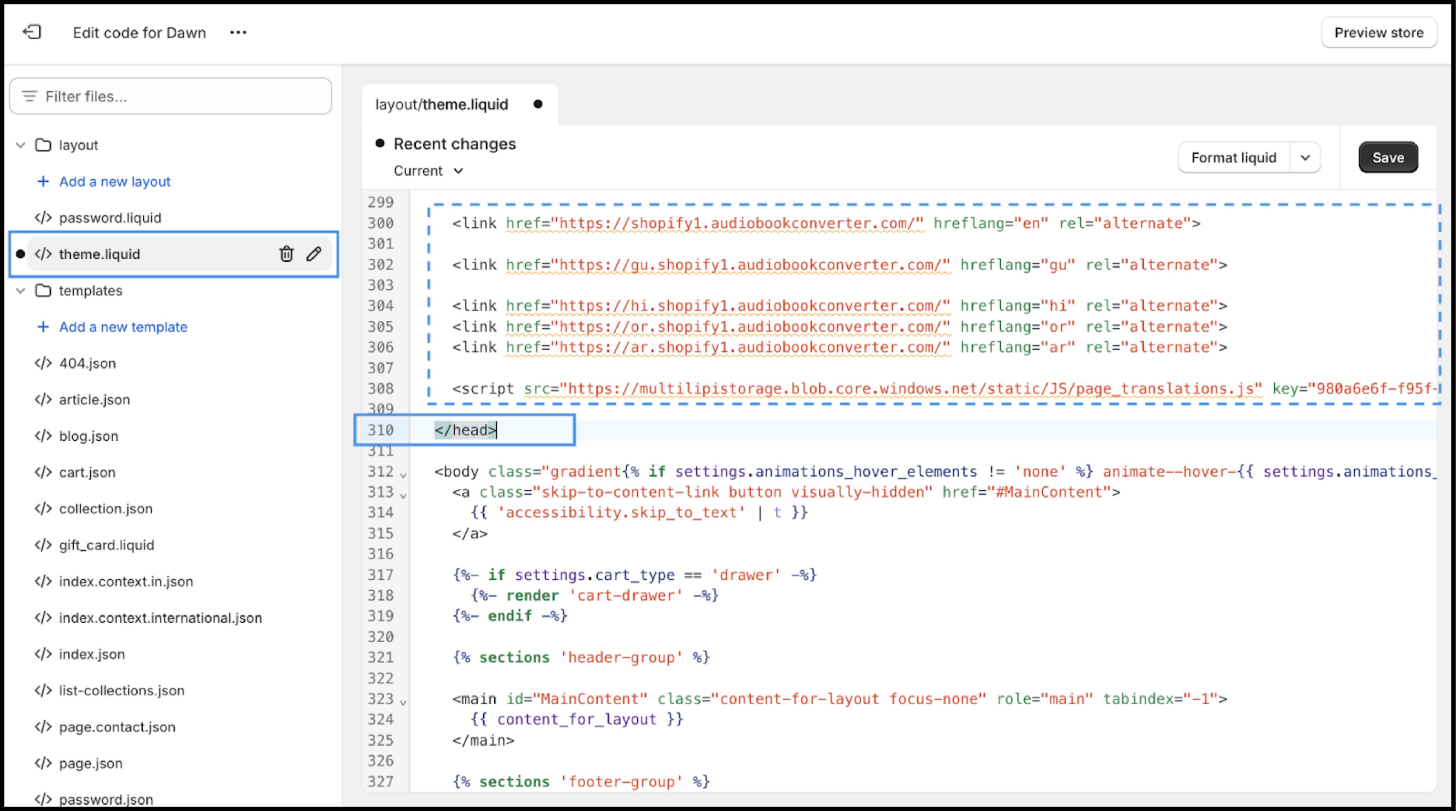
Suchen Sie im Dateiverzeichnis (linke Seitenleiste) den Ordner Layout .
- 2
Öffnen
theme.liquid. Dies ist die Master-Vorlage für Ihr Frontend. - 3
Scrollen Sie nach unten, um das schließende Tag zu finden
.
Aktion: Einfügen des Verbindungsskripts
Fügen Sie das folgende Verbindungsskript sofort ein oben das -Tag ein:
⚠️ Kritische Konfiguration
- •Ersetzen
IHREN_API_SCHLÜSSEL_HIERmit dem tatsächlichen API-Schlüssel, der von Ihrem MultiLipi-Dashboard kopiert wurde. - •Klicken Sie auf Speichern in der oberen rechten Ecke.
4. Schritt 3: Validierung & Launch
Nach dem Speichern ist die Infrastruktur live.
Storefront öffnen
Navigieren Sie zu Ihrer Live-Website-URL.
UI überprüfen
Sie sollten den Sprachumschalter unten links sehen (Standardposition).
Testübersetzung
Wechseln Sie zu einer Zielsprache. Überprüfen Sie, ob Produkttitel, Beschreibungen und „In den Warenkorb“-Schaltflächen sofort übersetzt werden.
Fehlerbehebungsprotokoll
- •Sie sehen den Umschalter nicht? Stellen Sie sicher, dass das Skript über dem schließenden
Tag steht, nicht darunter. - •Zwischenspeicherung: Wenn Sie eine Caching-App eines Drittanbieters verwenden, leeren Sie den Cache.
- •Inkognito: Testen Sie im Inkognito-/Privatmodus, um den lokalen Browser-Cache zu umgehen.
5. Nächste Schritte: Commerce-Optimierung
Jetzt, da die Engine läuft, optimieren Sie sie für den Verkauf:
Marke sperren
Verwenden Sie das Glossar, um zu verhindern, dass Produktnamen oder Markentermini wörtlich übersetzt werden.
SEO-Aktivierung
Stellen Sie sicher, dass „Slug-Übersetzung“ in Ihren MultiLipi-Einstellungen aktiviert ist, damit Ihre Produkt-URLs (z. B. /products/red-shoes) zu indizierten Schlüsselwörtern in Zielmärkten werden (z. B. /products/zapatos-rojos).
Checkout-Abgleich
Überprüfen Sie, ob Ihre Checkout-Einstellungen in Shopify lokalisierte Felder zulassen, wenn Sie Shopify Plus verwenden.