
Der Sprachumschalter ist das primäre Navigationselement für Ihren internationalen Traffic. MultiLipi bietet einen Dual-Interface-Editor, mit dem Sie das Verhalten und die Ästhetik dieses Elements unabhängig für Desktop- und Mobilgeräteansichten steuern können.
Diese Anleitung behandelt die Konfiguration von Layouts, Positionierung, und Marken-Styling über das MultiLipi Command Center.
1. Zugriff auf den Interface-Editor
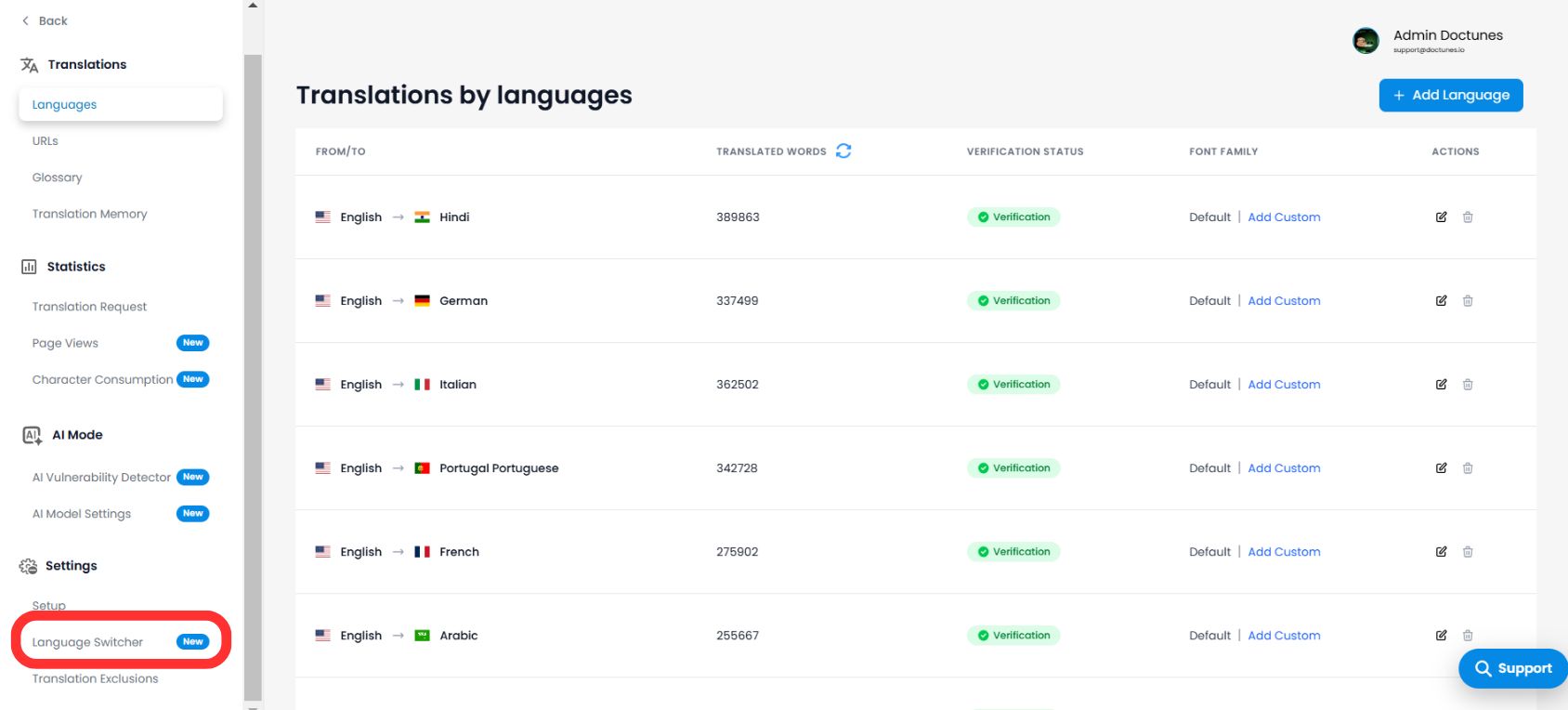
Um die Anpassung Ihrer Frontend-Integration zu beginnen:
- 1Navigieren Sie zu Ihrem MultiLipi Dashboard.
- 2Öffnen Einstellungen aus dem linken Menü.
- 3Auswählen Sprachumschalter.
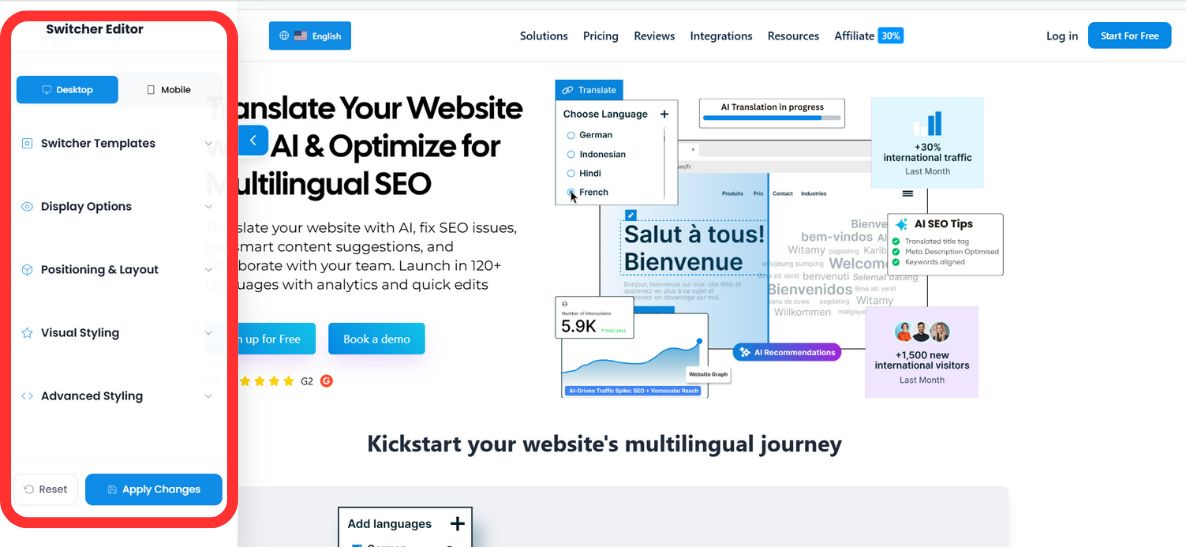
💡 Profi-Tipp: Sie gelangen zum Switch-Editor, der eine Echtzeit-Vorschau-Leinwand bietet. Verwenden Sie den Schalter oben, um zwischen den Ansichten zu wechseln Desktop und Mobil Ansichten, um die Responsivität über verschiedene Geräte hinweg sicherzustellen.
2. Schritt 1: Auswahl der Architektur (Positionierung)
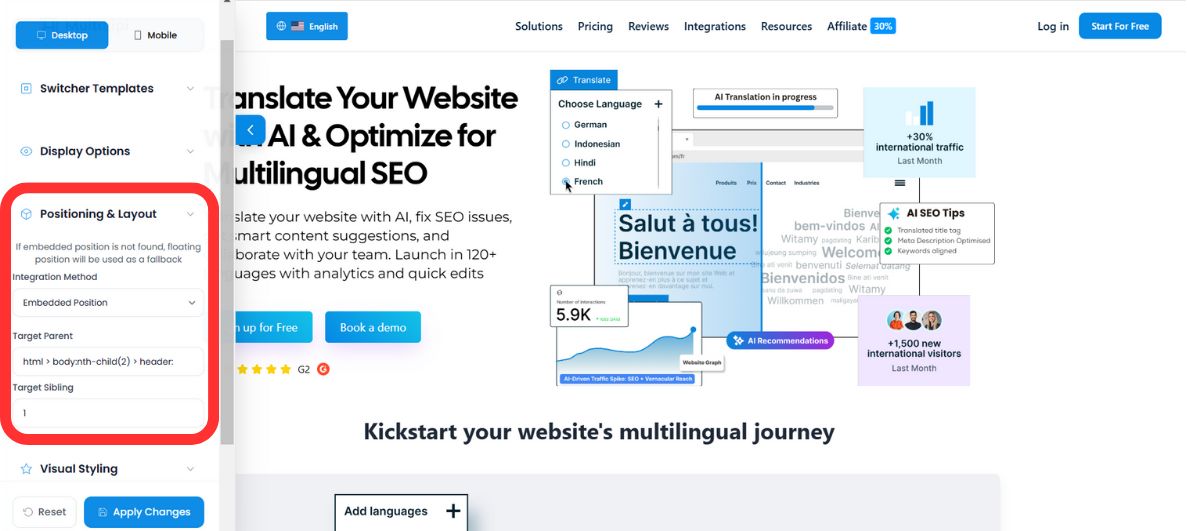
Definieren Sie, wie sich der Umschalter innerhalb Ihres DOM verhält. Sie haben zwei Bereitstellungsmodi:
Modus A: Schwebend (Standard)
Verhalten: Der Umschalter schwebt über Ihren Inhalten und ist an einer bestimmten Ecke des Bildschirms verankert (z. B. unten rechts).
Anwendungsfall: Am besten für sofortige Sichtbarkeit, ohne den bestehenden Layout-Code Ihrer Website zu verändern.
Modus B: Eingebettet (Integriert)
Verhalten: Der Umschalter wird in ein von Ihnen definiertes HTML-Element eingefügt (z. B. in die Navigationsleiste oder den Footer).
⚠️ Das Fallback-Protokoll
Wenn Ihr angegebener HTML-Container auf einer bestimmten Seite nicht gefunden werden kann, wird MultiLipis Fallback-Logik setzt den Umschalter automatisch auf den "Floating Mode" zurück. Dies stellt sicher, dass Benutzer nie von der Sprachauswahl ausgeschlossen werden, selbst wenn sich das Layout ändert.
3. Schritt 2: Visuelle Identität (Vorlagen & Farben)
Richten Sie den Umschalter an Ihrem Markendesignsystem aus.
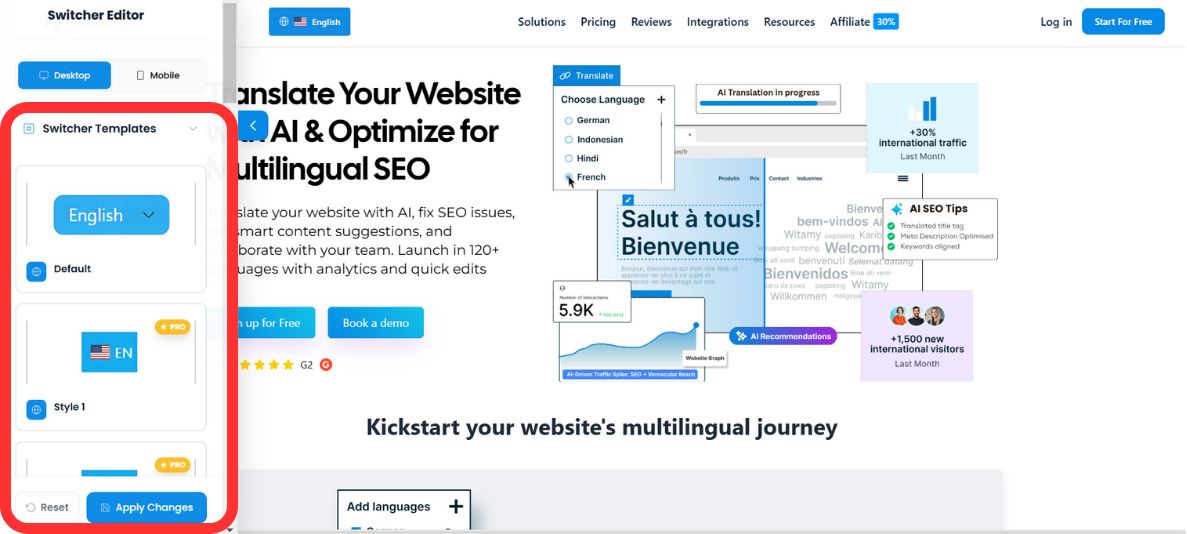
Vorlagenauswahl
Wählen Sie aus unserer Bibliothek von vorkonfigurierten UI-Mustern, um sie an die Ästhetik Ihrer Website anzupassen:
Farbpaletten-Integration
Überschreiben Sie die Standardstile, um sie an Ihre Markenrichtlinien anzupassen, indem Sie den integrierten Farbwähler oder rohe RGB-Werte verwenden:
- •Hintergrundfarbe: Passen Sie die Stile Ihrer Navbar oder Schaltfläche an.
- •Textfarbe: Stellen Sie einen hohen Kontrast für die Barrierefreiheit sicher (WCAG-Konformität).
4. Schritt 3: Erweitertes Styling (Benutzerdefiniertes CSS)
Für Entwickler, die pixelgenaue Kontrolle benötigen, können Sie benutzerdefinierte CSS-Regeln direkt in den Shadow DOM des Widgets einfügen.
Gängige CSS-Selektoren:
#dynamicDropdown- Zielt auf den Hauptcontainer der Dropdown-Liste ab.#lang-switcher-selected-lang .fi- Zielt auf das Flaggen-Symbol der aktuell ausgewählten Sprache ab.
Beispielkonfiguration:
/* Entfernen Sie den Randradius für ein scharfes, quadratisches Design */
#lang-switcher-selected-lang .fi {
  border-radius: 0px;
}

/* Passen Sie den Hintergrund des Dropdowns an */
#dynamicDropdown {
  background-color: #ffffff;
  box-shadow: 0 4px 12px rgba(0,0,0,0.1);
}
💎 Entwicklerhinweis: Benutzerdefiniertes CSS ermöglicht es Ihnen, jede visuelle Eigenschaft zu überschreiben und gleichzeitig die funktionale Logik des Umschalters beizubehalten. Dies ist besonders nützlich, um komplexe Designsysteme anzupassen oder Dark-Mode-Varianten zu implementieren.
5. Bereitstellung & Verifizierung
Sobald Ihre Konfiguration abgeschlossen ist:
Vorschau
Wechseln Sie im Editor zwischen Desktop- und Mobilmodus, um die visuelle Konsistenz zu überprüfen.
Speichern
Klicken Speichern um die Änderungen sofort auf Ihre Live-Produktionsseite zu übertragen.
Zurücksetzen
Wenn Sie von vorne beginnen müssen, verwenden Sie die Zurücksetzen Funktion, um zu den Standard-MultiLipi-Stilen zurückzukehren.
✅ Erfolg: Ihr Sprachumschalter ist jetzt live! Änderungen werden sofort auf allen Seiten übernommen, auf denen MultiLipi bereitgestellt wird. Kein Cache-Löschen oder Seitenaktualisierung für die meisten Konfigurationen erforderlich.