

Wahre Lokalisierung geht über Worte hinaus; sie erfordert visuelle Ausrichtung an lokalen typografischen Standards. Eine Schriftart, die im Englischen (lateinisches Alphabet) gut aussieht, kann in Hindi (Devanagari) oder Arabisch schlecht dargestellt werden. MultiLipi ermöglicht es Ihnen, spezifische Google Fonts für bestimmte Sprachen, um sicherzustellen, dass Ihre übersetzten Seiten authentisch und vertrauenswürdig wirken.
Diese Anleitung beschreibt das genaue Protokoll für Font-Assets von Google abrufen und sie in Ihrem MultiLipi-Kommandozentrum konfigurieren.
1. Vorbereitung der Assets (Google Fonts)
Bevor Sie das Dashboard konfigurieren, müssen Sie den korrekten Font-Endpunkt von Google generieren.
Schriftfamilie auswählen:
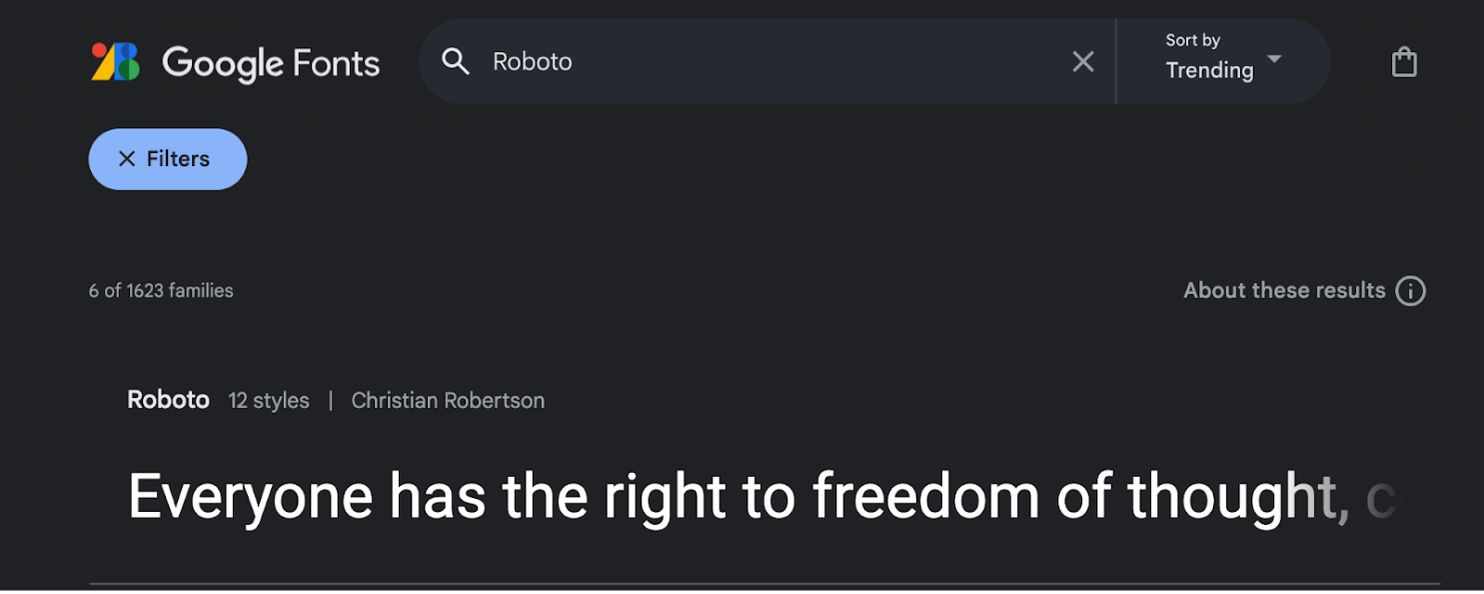
- •Navigieren Sie zu Google Fonts.
- •Suchen Sie nach Ihrer gewünschten Schriftart (z. B.
"Roboto"or"Baloo 2"). - •Klicken Sie auf die Schriftartkarte, um deren Details zu öffnen.
Stile auswählen:
- •Klicken Sie auf die "Schriftart abrufen" Schaltfläche in der oberen rechten Ecke.
- •Klicken Sie auf der Konfigurationsseite auf "Embed-Code abrufen".
Import-Link generieren:
- •Wählen Sie im linken Bereich die spezifischen Schnitte/Stile aus, die Sie benötigen (z. B.
Normal 400,Fett 700). - •Entscheidender Schritt: Wählen Sie im rechten Bereich "Web" und stellen Sie sicher, dass Sie klicken
"@import"(anstelle von "link"). - •Kopieren Sie die im Codeblock generierte URL.
2. Infrastrukturkonfiguration
Sobald Sie Ihren Asset-Link haben, fügen Sie ihn in die Übersetzungs-Engine ein.
Spracheinstellungen navigieren:
- •Melden Sie sich bei Ihrem MultiLipi-Admin-Panel an.
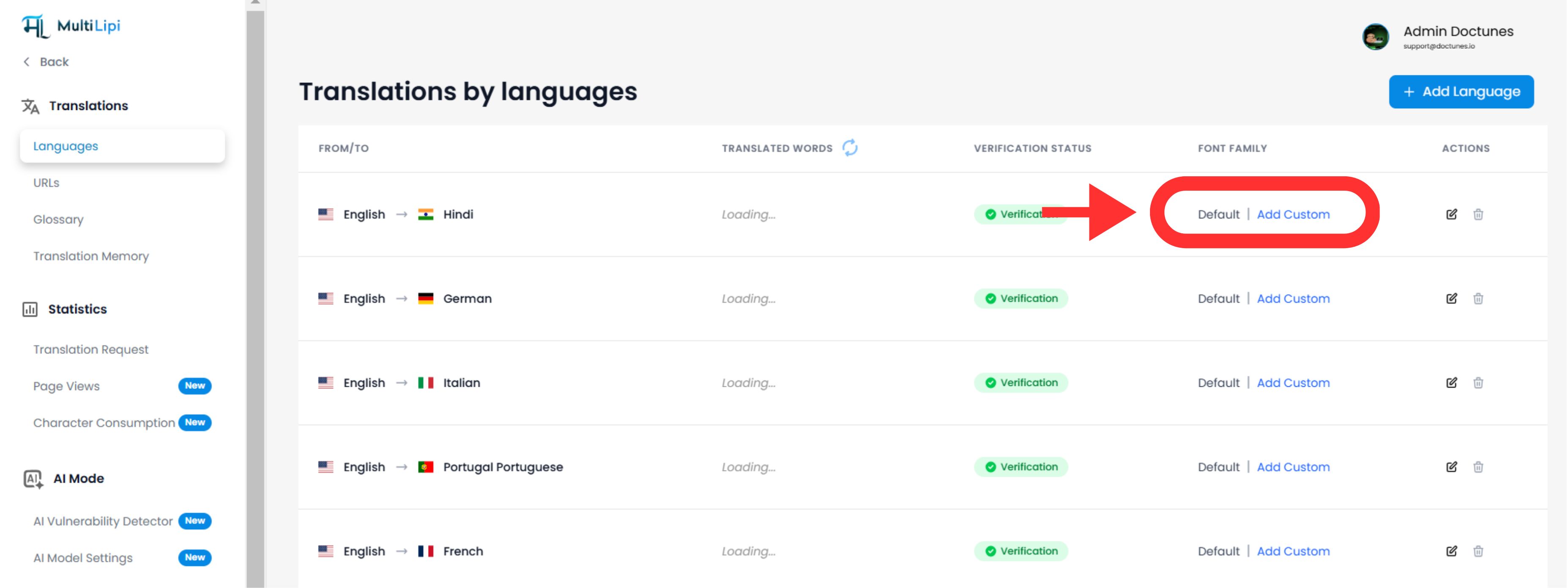
- •Klicken Sie in der linken Seitenleiste auf Sprachen unter dem Übersetzungen Abschnitt.
Font-Injektion initiieren:
- •Suchen Sie die spezifische Sprachzeile, die Sie ändern möchten (z. B. Hindi).
- •Klicken Sie auf die
"Schriftart hinzufügen"Schaltfläche neben dieser Sprache.
Stellen Sie das Asset bereit:
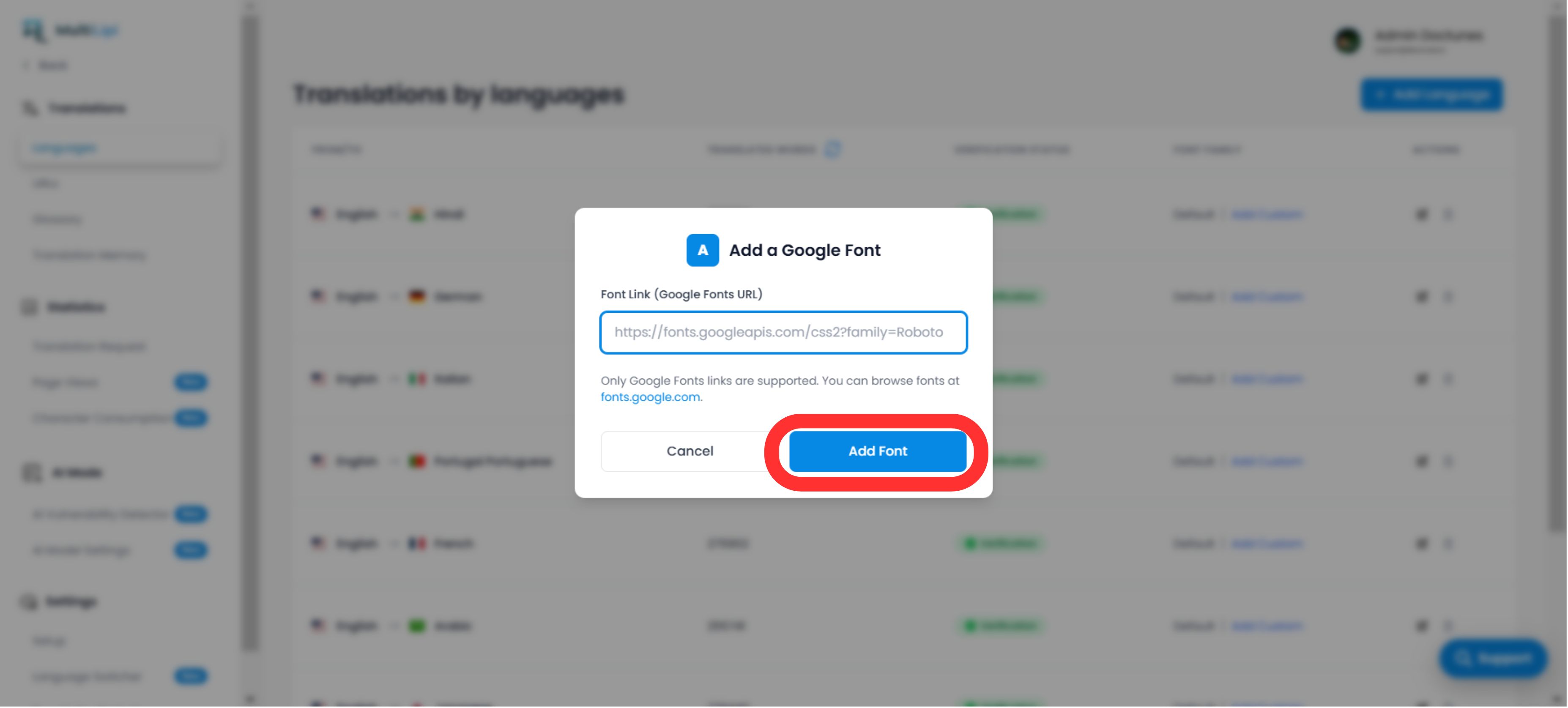
- •Ein Popup-Fenster wird angezeigt.
- •Einfügen: Fügen Sie die Google-Schriftart-URL ein, die Sie in Schritt 1 kopiert haben.
- •Ausführen: Klicken Sie auf
Senden.
3. Validierung & Rendering
Sofortige Bereitstellung:
Nach der Übermittlung ist die Schriftart automatisch angewendet für diese spezifische Sprachversion Ihrer Website. Es sind keine CSS- oder manuellen Codeänderungen erforderlich.
Standard-Fallback:
Wenn für eine Sprache keine benutzerdefinierte Schriftart hinzugefügt wird, rendert das System weiterhin die Standard-Schriftfamilie.
Technischer Hinweis:
- •Stellen Sie sicher, dass Sie eine gültige Google Fonts URL.
- •Das System wendet diese Schriftart an nur in die Zielsprache, wodurch Ihr ursprüngliches Design für die Quellsprache erhalten bleibt.