
Übersetzungen verzerren oft das Design. Deutsche Wörter sind 30 % länger als englische; Arabisch kehrt das Layout von Rechts nach Links. Der MultiLipi Visuelle Editor bietet eine Echtzeit-WYSIWYG-Umgebung , in der Sie Inhalte verfeinern, Stile anpassen und Layoutprobleme direkt auf einer Live-Darstellung Ihrer Website beheben können.
Diese Benutzeroberfläche kombiniert Neuronale Inhaltvorschläge mit CSS/Schriftart-Steuerelemente, sodass Sie die visuelle Identität Ihrer Marke auf jedem Gerät schützen können.
Die Layout-Herausforderung
Ein perfekt gestalteter englischer Button mit der Aufschrift „Buy Now“ kann überlaufen und Ihr Layout brechen, wenn er ins Deutsche als „Jetzt Kaufen“ oder ins Finnische als „Osta Nyt“ übersetzt wird. Der visuelle Editor ermöglicht es Ihnen, diese Probleme zu erkennen und zu beheben, bevor Ihre Kunden sie sehen.
1. Starten der Benutzeroberfläche
Um mit einer visuellen Überprüfung Ihrer lokalisierten Seiten zu beginnen:
Projekt aufrufen
Navigieren Sie zu Ihrem MultiLipi Dashboard und wählen Sie Ihr aktives Projekt aus.
Zielseite finden
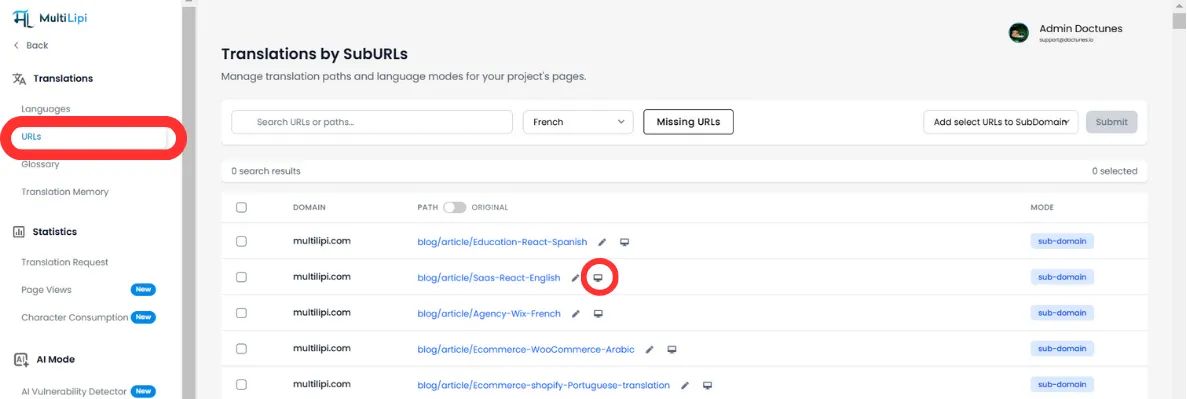
Gehe zu Übersetzungen > URLs. Dies zeigt eine Liste aller indizierten Pfade an (z. B. /pricing, /ueber-uns).
Editor initialisieren
Klicken Sie auf die Symbol für den visuellen Editor (🖌️/🖥️) neben der spezifischen URL, die Sie überprüfen möchten.
📌 Hinweis: Der Editor lädt einen Live-Proxy Ihrer Website. Sie können wie ein echter Benutzer durch Links navigieren, um tief verlinkte Inhalte zu finden.
2. Kernfunktionen
A. Kontextbezogene Textbearbeitung
Bearbeiten Sie nicht in einer Tabelle; bearbeiten Sie dort, wo der Benutzer es sieht.
Direkte Bearbeitung
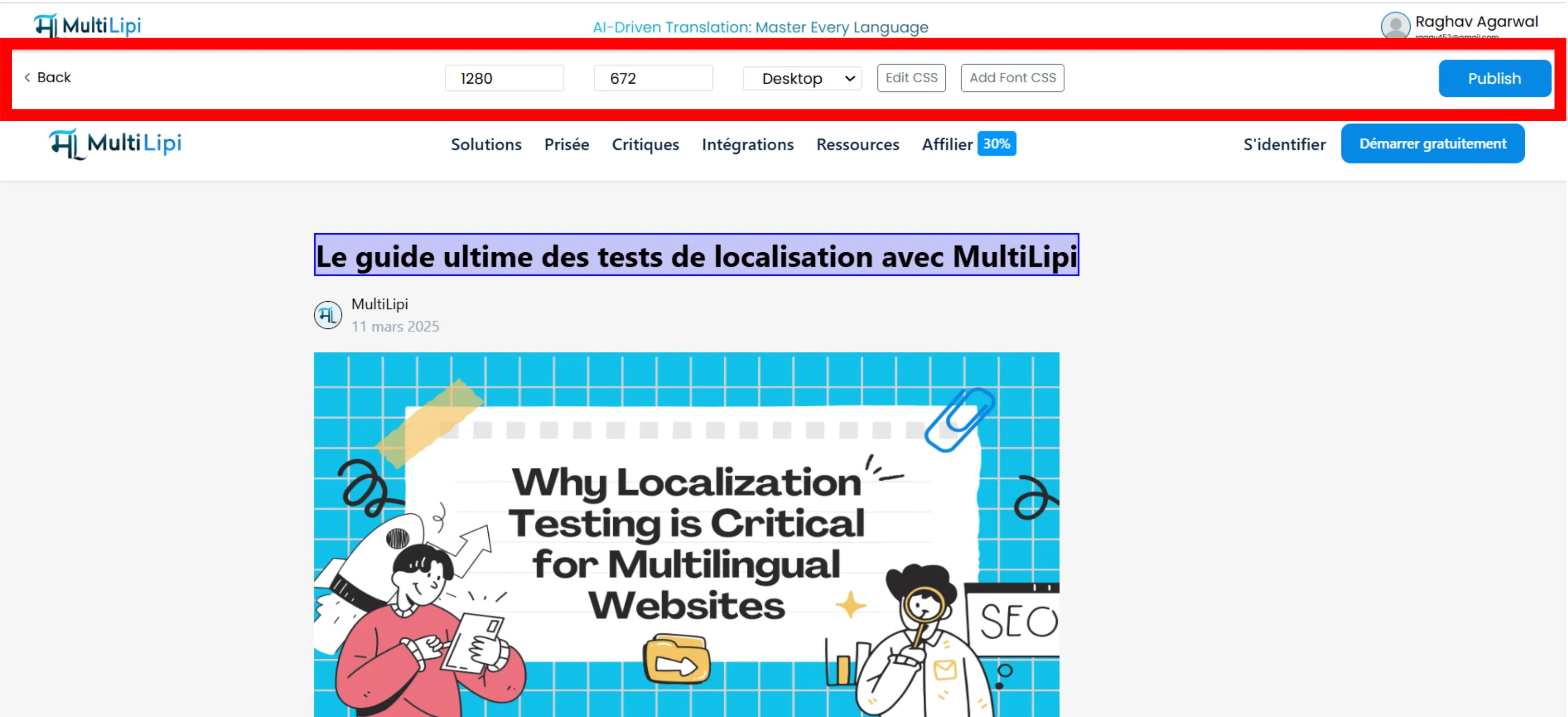
Klicken Sie auf eine beliebige Überschrift, einen Absatz oder eine Schaltfläche, um direkt auf der Seite zu tippen.
Neuronale Vorschläge
Während Sie Text auswählen, analysiert unsere KI-Engine das Element und bietet Intelligente Umschreibungen an, die für den spezifischen Bereich und Ton optimiert sind.
Ein-Klick-Ersetzung
Akzeptieren Sie sofort einen KI-Vorschlag oder fügen Sie einen vorab genehmigten Begriff aus Ihrem Glossar ein, ohne manuell tippen zu müssen.
B. Medien- & SEO-Lokalisierung
Bilder transportieren Kontext. Lokalisieren Sie sie, um die Relevanz zu erhöhen.
Bild-Alt-Tags
Klicken Sie auf ein beliebiges Bild, um dessen alt Attribut zu bearbeiten. Die Übersetzung stellt sicher, dass Ihre Bilder in lokalen Google Bildersuchen gefunden werden.
"Laufschuhe""Chaussures de sport"C. Design System-Überschreibungen (CSS & Schriftarten)
Unterschiedliche Sprachen erfordern unterschiedliche visuelle Behandlungen.
Benutzerdefiniertes CSS
Klicken Sie auf "CSS bearbeiten" um Stile nur für die spezifische Sprache einzufügen, die Sie bearbeiten.
Anwendungsfall:
Reduzieren Sie die Schriftgröße eines Buttons auf Deutsch, um Textüberläufe zu vermeiden.
Typografie-Kontrolle
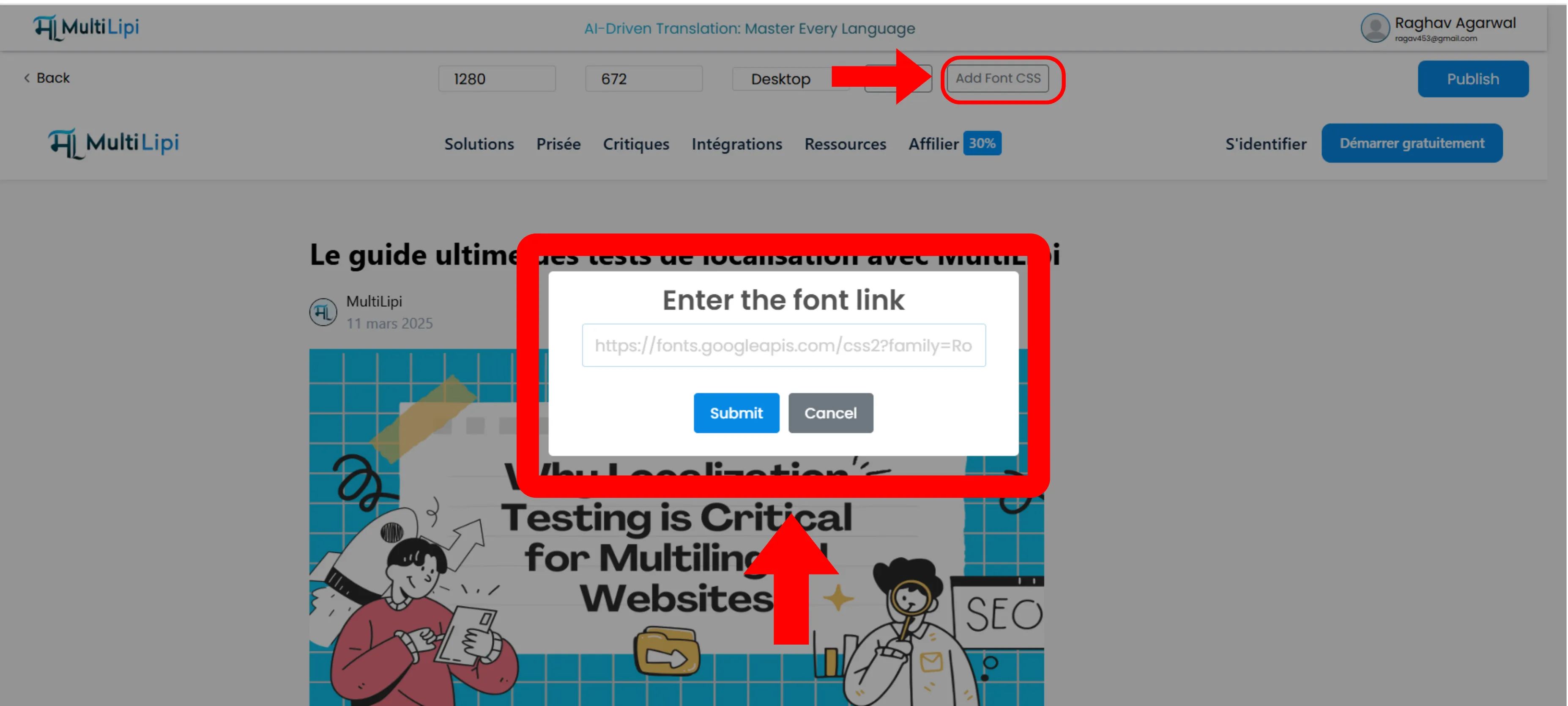
Verwenden "Google Fonts hinzufügen" um regionsspezifische Schriftarten zu laden.
💡 Profi-Tipp:
Laden Sie eine spezialisierte Schriftart wie Noto Sans JP für japanische Seiten, um sicherzustellen, dass Zeichen schön gerendert werden, anstatt eine generische Systemschriftart zu verwenden.
D. Responsive Überprüfung
Ihre Website muss auf jeder Bildschirmgröße funktionieren.
Geräteumschaltung
Verwenden Sie die obere Symbolleiste, um zwischen Desktop, Tablet, und Mobil Ansichten zu wechseln.
Layout-Prüfung
Stellen Sie sicher, dass längere Übersetzungen kritische CTA-Schaltflächen auf Mobilgeräten nicht "unter den Tisch" schieben.
3. Bereitstellung
Sofortige Edge-Weitergabe
Wenn Sie mit der visuellen und sprachlichen Qualität zufrieden sind:
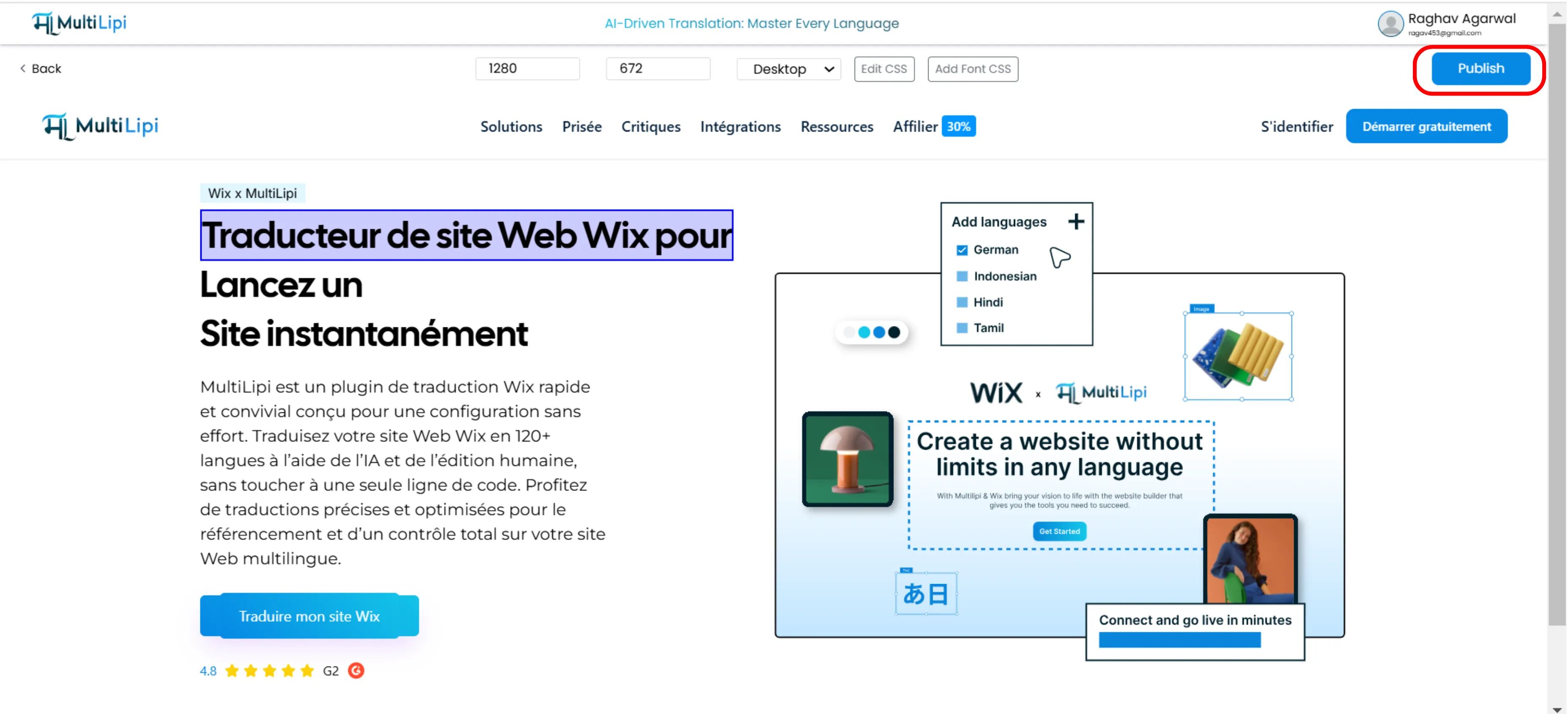
Klicken Sie auf Veröffentlichen in der oberen rechten Ecke.
Die Änderungen werden sofort an unser Global Delivery Network (GDN) weitergeleitet.
Ihre Live-Website-Updates sofort für alle Benutzer weltweit.
⚡ Keine Cache-Verzögerungen: Im Gegensatz zu herkömmlichen CMS-Workflows, bei denen Sie möglicherweise stundenlang auf die CDN-Cache-Invalidierung warten, stellt die Edge-Infrastruktur von MultiLipi sicher, dass Änderungen innerhalb von Sekunden weltweit weitergegeben werden.
Zusammenfassung: Warum visuellen Editor verwenden?
| Merkmal | Nutzen |
|---|---|
| Echtzeit-Rendering | Sehen Sie genau, wie sich Übersetzungen auf Ihr Layout auswirken, bevor Sie sie veröffentlichen. |
| Design-Integrität | Beheben Sie "kaputte" Layouts, die durch Textexpansion verursacht werden (z. B. auf Deutsch oder Russisch). |
| Skriptlesbarkeit | Importieren Sie benutzerdefinierte Schriftarten für nicht-lateinische Skripte (Arabisch, Chinesisch) für professionelle Typografie. |
| Medien-SEO | Lokalisieren Sie versteckte Attribute wie Alt-Tags für maximale Suchsichtbarkeit. |
🎨 Design ist global wichtig: Der visuelle Editor stellt sicher, dass die visuelle Identität Ihrer Marke in allen über 120 Sprachen erhalten bleibt und vermeidet den häufigen Fehler, dass übersetzte Websites im Vergleich zum Original „kaputt“ oder unprofessionell aussehen.