
Die automatische Übersetzung liefert die Basis, aber eine perfekte Lokalisierung erfordert oft Nuancen. MultiLipi integriert eine Generative Suggestion Engine direkt in Ihren Bearbeitungs-Workflow. Egal, ob Sie eine Überschrift kürzen müssen, um sie auf einen mobilen Bildschirm zu passen, oder eine rechtliche Haftungsausschlusserklärung formeller gestalten möchten, Sie können On-Demand-KI-Umschreibungen in drei spezifischen Umgebungen auslösen.
Diese Anleitung beschreibt die Betriebsprotokolle für die Seiten-Seiten-Editor, Virtueller Editor, und die Variabilitäts-Engine.
1. Der Side-by-Side-Editor (Präzisionswerkbank)
Die Code-Ansicht-Umgebung für granulare Kontrolle.
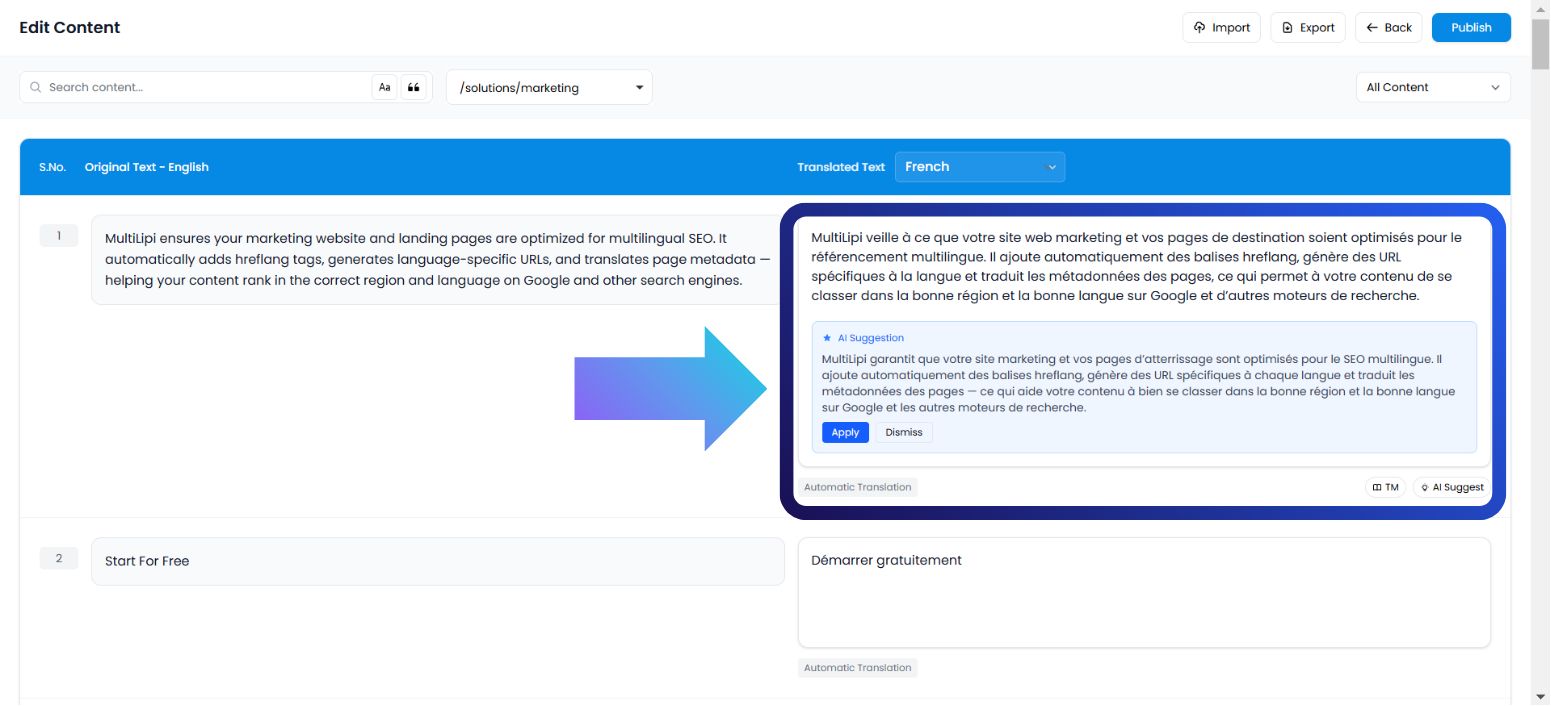
Diese Benutzeroberfläche zeigt Ihre Inhalte als strukturierte Liste von Zeichenfolgenpaaren (Quelle vs. Ziel) an. Sie ist die ideale Umgebung für Linguisten oder Redakteure, die sich ohne visuelle Ablenkungen ausschließlich auf den Text konzentrieren müssen.
Anwendungsfall:
Umformulieren eines bestimmten Satzes, um ihn SEO-freundlicher zu gestalten, oder Korrigieren einer grammatikalischen Nuance in einem dichten Absatz.
Ausführungsprotokoll:
Dashboard aufrufen: Melden Sie sich in Ihrem MultiLipi-Kommandozentrum an.
Projekt auswählen: Klicken Sie auf die spezifische Projektkachel.
Navigieren: Öffnen Sie die Sprachen Registerkarte.
Oberfläche starten: Wählen Sie Side-by-Side-Editor aus den Optionen.
KI auslösen: Suchen Sie den spezifischen Textblock. Klicken Sie auf der übersetzten Seite (rechte Spalte) auf KI-Vorschlag Schaltfläche.
Commit:
Anwenden: Ersetzt den aktuellen Text durch die KI-Version (verbraucht Kontingent).
Schließen: Verwirft den Vorschlag (Null Kosten).
2. Der virtuelle Editor (Overlay-Umgebung)
Der WYSIWYG-Kontext (What You See Is What You Get).
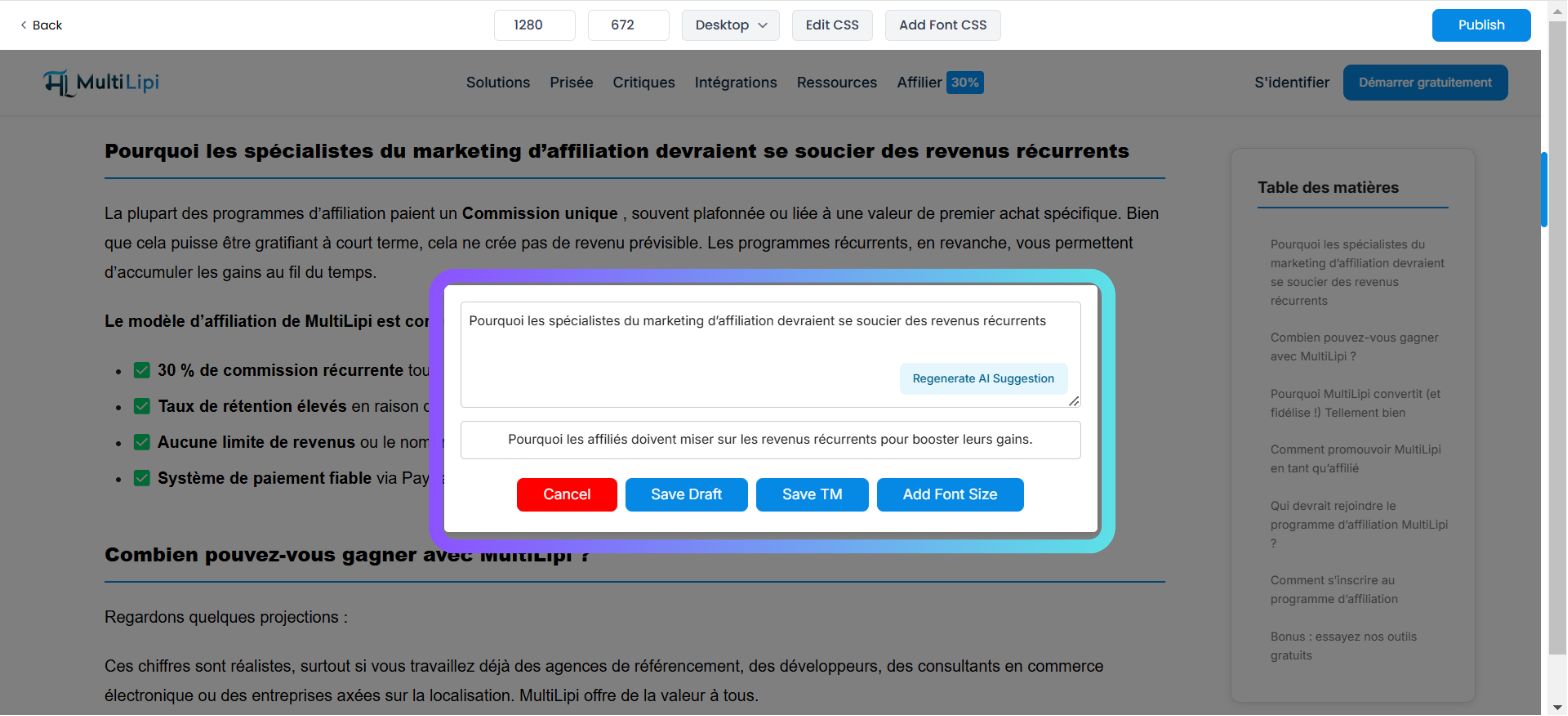
Diese Benutzeroberfläche legt die Übersetzungs-Engine über Ihre Live-Website. Sie ermöglicht es Ihnen, Text "in-situ" zu bearbeiten, um sicherzustellen, dass Ihre neue Übersetzung innerhalb der visuellen Grenzen Ihrer Schaltflächen, Banner und Menüs passt.
Anwendungsfall:
Kürzen eines Blogtitels, der das Layout stört, oder Umschreiben eines Call-to-Action (CTA)-Buttons, um ihn prägnanter zu gestalten.
Ausführungsprotokoll:
Navigieren: Gehen Sie zu Dashboard → Projekte → URLs.
Vorschau starten: Klicken Sie auf die Bearbeiten Schaltfläche unter dem Virtuelle Vorschau Spalte für eine bestimmte Seite.
Element auswählen: Fahren Sie mit der Maus über jeden bearbeitbaren Textblock in der Live-Vorschau und klicken Sie darauf.
KI auslösen: Tippen Sie auf KI-Vorschlag Schaltfläche in der Popup-Symbolleiste.
Commit: Überprüfen Sie die generierte Option und klicken Sie auf Anwenden , wenn es zu Ihrem Layout passt.
3. Die Variabilitäts-Engine (Stilistische Vielfalt)
Generieren semantischer Alternativen.
Manchmal reicht eine einzige Übersetzung nicht aus. Die Variabilitäts-Engine generiert mehrere stilistische Versionen desselben Satzes, sodass Sie diejenige auswählen können, die am besten zur Stimme Ihrer Marke passt (z. B. professionell vs. überzeugend vs. prägnant).
Anwendungsfall:
A/B-Tests verschiedener Marketing-Hooks für eine Landingpage-Überschrift.
Ausführungsprotokoll:
Einstellungen aufrufen: Öffnen Sie Ihr Projekt-Dashboard.
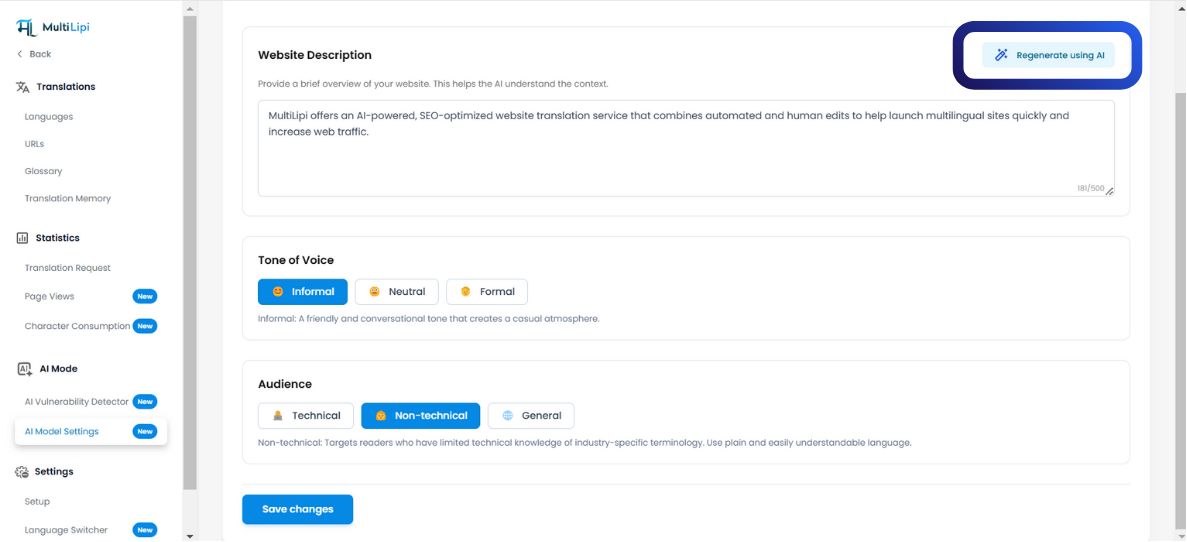
Navigieren: Suchen Sie nach dem KI-Modus Abschnitt in der Seitenleiste.
Konfigurieren: Klicken Sie auf die KI-Modell-Einstellungen Symbol.
Generieren: Wählen Sie Ihre gewünschte KI-Inhaltsformat. Das System präsentiert mehrere Variationen basierend auf der Satzstruktur.
Schnellanwendung: Wählen Sie die bevorzugte Version aus, um den Übersetzungsspeicher sofort zu aktualisieren.
4. Kontingentverwaltung (Abrechnungslogik)
Verständnis der Kosten für die Generierung.
Es ist entscheidend zu verstehen, wann Guthaben von Ihrem Plan abgezogen werden.
| Aktion | Kontingentauswirkung |
|---|---|
| Vorschau anzeigen | Kostenlos. Das Generieren einer Vorschau kostet keine Credits. |
| Vorschlag anwenden | Abrechenbar. Das Kontingent wird nur abgezogen, wenn Sie auf "Anwenden" klicken. |
| Vorschlag ablehnen | Kostenlos. Das Ablehnen eines KI-Entwurfs kostet nichts. |
Plan-Notiz:
Kostenlose Tarife haben strenge Obergrenzen für den KI-Wortverbrauch. Bezahlte Tarife bieten erweiterte oder unbegrenzte Generierungslimits, abhängig von Ihrer Unternehmensvereinbarung.